Building An Email Archive And Search System
You can use ThinkAutomation to create a web-based centralized email archive and search solution. A web form can be used for the search - with the results shown in a grid. Multiple email accounts can be combined into a single search view.
Benefits
The web-based Message Store Viewer provides more than just a simple archive interface. It delivers a secure, centralized, and highly flexible way to access and manage your email data.
- Centralized Multi-Account Visibility : Emails from multiple accounts (Office 365, Gmail, IMAP and others) can be combined into a single Message Store database. This allows users to search and view all communications from one interface, removing the need to access individual mailboxes.
- Private & Secure Data Ownership : All messages are stored locally within the ThinkAutomation Message Store database on your own infrastructure. This ensures complete data ownership and avoids reliance on third-party hosted archive services.
- Flexible Access (Local Or Public) : The viewer can be accessed locally, across your internal network, or securely exposed via a public URL using the ThinkAutomation Gateway. This enables controlled access for internal teams, remote workers, or external users where required.
- Optional Authentication & Access Control : Access to the web viewer can be restricted using ThinkAutomation user accounts. This ensures that only authorized users can view archived messages, supporting secure internal or external access scenarios.
- Fast Full-Text Search : With automatic keyword extraction and indexing, users can quickly locate messages using simple search terms. Date filters and pagination allow efficient navigation through large volumes of archived data.
- Built-In Compliance & Audit Support : The Message Store provides a reliable, searchable record of all processed communications. This can assist with auditing, compliance, and record-keeping requirements, particularly where email retention is important.
- Attachment Access & Complete Message History : Users can view full message details, including attachments, directly from the browser interface. This ensures all relevant information is accessible without needing to retrieve emails from original mail systems.
- Customizable User Interface : The web viewer HTML templates can be customized to match your branding or specific requirements, allowing you to tailor the interface for internal tools or customer-facing solutions.
Note
The web message store viewer requires ThinkAutomation Standard or Professional edition. You can view the message store using the ThinkAutomation Studio using any edition.
Setup
First, create a new Solution. The Name given to the solution will show as the web form title.
Set the Keep Message For (Days) entry on the solution properties to a high value (so that ThinkAutomation does not automatically remove old messages).
On the Solution Properties, select the Keywords tab and enable the Extract And Save Unique Keywords For Messages Added In This Solution option. ThinkAutomation will then extract all unique words from the body text for all incoming messages. These will be saved with each message in the Message Store database to improve search results.
Creating Message Sources To Read Emails
Create a new Message Source to read emails from your email source (Office 365, Gmail, IMAP etc).
Create a new Automation for the new message source. You can create any automation actions within the automation to process incoming emails, however the automation itself does not need to perform any specific actions for the archive view.
Repeat the message source and automation for each of the email accounts you want to store and search against. Enable the message sources so that your emails will be read and saved to the ThinkAutomation Message Store.
Viewing The Archive
ThinkAutomation includes a built-in web-based Message Store viewer.
On the Solution Properties - select the Web Message Store Viewer tab.
Enable the Enable Web Based Message Store Viewer option.
Enable the Enable Access Via Public URL option if you want to allow access via Web API Gateway public URL. This will work from any location.
Enable the Require Login option if users must login with a valid ThinkAutomation Username/Password before viewing messages.
The Public URL box shows the URL for the public interface.
The Local URL box shows the local URL. This will work locally and on your local network (replace 'localhost' with the IP/DNS name of your ThinkAutomation server computer).
By default the web view will show a menu containing all Automations in the Solution. The user can select an Automation to view processed messages. If the Show Automations Menu option is disabled, then all messages for the solution will be shown.
Messages can be searched by entering any search text and clicking the search button. Multiple search terms can be used (eg: price quotation - would include messages containing 'price' AND 'quotation' anywhere in the text), you can search for multiple words by enclosing in quotes (eg "invoice 1234" - would include messages containing "invoice 1234"). The from/to address, subject, body text and attachment names are searched.
Enable the Show From And To Date Selectors if you want to include from/to dates on the search form.
Messages are shown in pages. The user can click the Previous and Next buttons to change pages. You can adjust the number of messages shown per page using the Messages Per Page entry.
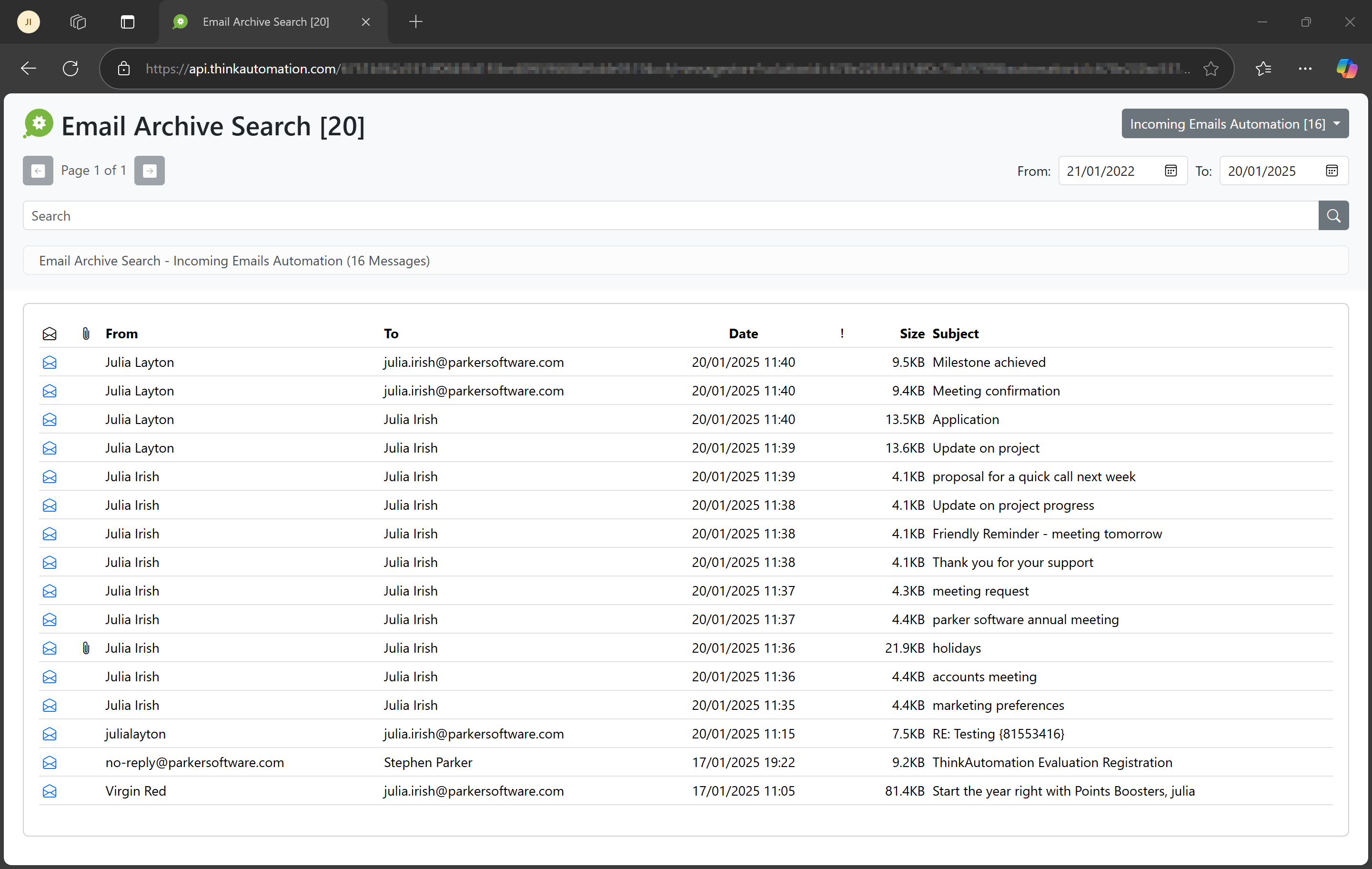
When viewing messages - click a message line to view the full message detail. From the detail view you can also click attachments to view attachment contents.
Customizing The Web Viewer Template
You can customize the HTML template used for the message store viewer by editing the messagestoreviewtemplate.html and messagestoreviewtemplatelogin.html files in the Program Files\ThinkAutomation folder. These should be saved as messagestoreviewtemplate_custom.html and messagestoreviewtemplatelogin_custom.html. The custom ones will be loaded first if they exist. The default files will be overwritten during any ThinkAutomation updates, so ensure you save with '_custom' appended to the filenames.
Note
The ThinkAutomation Server service will need to be restarted if you change the template files.
Ensure not to remove any <!--Comment--> lines or %placeholder% variables. You will need to restart the ThinkAutomation Service after making any changes.